
Learning how to use Notion AI for everyday writing tasks completely changed the way I approach work. I used to waste hours staring at a blank cursor, waiting for inspiration to strike. I used to waste hours staring at a blank cursor, waiting for inspiration to strike. Every morning, the same routine repeated itself: I would open my inbox, look at an urgent, complex client email, and spend 45 minutes drafting, erasing, and rewriting a response. By the time I actually hit “Send,” my creative energy for the day was completely drained. I tried using external AI chat windows to speed up my work, but copying text back and forth between different browser tabs quickly became an operational mess.
The real problem wasn’t a lack of writing skill; it was a broken workflow. Understanding how to use Notion AI for everyday writing tasks starts with fixing that workflow rather than simply generating more text.
True AI productivity isn’t achieved by jumping between separate browser windows to generate generic paragraphs. It comes down to integrating smart assistants directly into the digital workspace where you already manage your projects.
Notion’s official AI documentation explains how AI features work directly inside pages and databases, making it easier to keep context attached to your work rather than switching between tools. (External Link: https://www.notion.com/help/guides/category/ai)
If you use Notion to keep track of your daily notes, tasks, or company wikis, you already have access to a powerful writing engine. This comprehensive guide walks you through a practical, step-by-step system to use Notion AI for everyday writing tasks, allowing you to speed up your communication, eliminate writing anxiety, and reclaim hours of your work week.

Why Everyday Writing Workflows Feel So Draining
Before learning how to use Notion AI for everyday writing tasks, it helps to understand where most writing-related productivity losses occur. Most professionals don’t realize how much mental energy they lose to minor writing tasks. Drafting project updates, writing email replies, and outlining weekly meeting agendas consume a significant portion of our workdays.
We typically run into three major friction points:
- The Blank Page Block: Spending the first 15 minutes of any task trying to figure out the right opening sentence.
- Context Fragmentation: Switching back and forth between a project database and an external AI chatbot to feed it background information.
- Tone Inconsistency: Accidentally letting frustration or exhaustion leak into important client communications or team updates.
When you use AI for productivity, your goal is to eliminate these operational bottlenecks. By building an AI productivity system inside your existing notes app, you can use your project data as instant context, letting the system generate accurate drafts in seconds. This is exactly where learning how to use Notion AI properly makes a measurable difference in daily productivity.
If you’re comparing AI writing tools, our breakdown of GrammarlyGO vs Notion AI comparison guide helps you choose the right workflow system.
This approach becomes even more powerful when it is part of a larger AI productivity system framework that connects your notes, communication channels, and automation tools together.
The 3-Part Notion AI Writing Framework
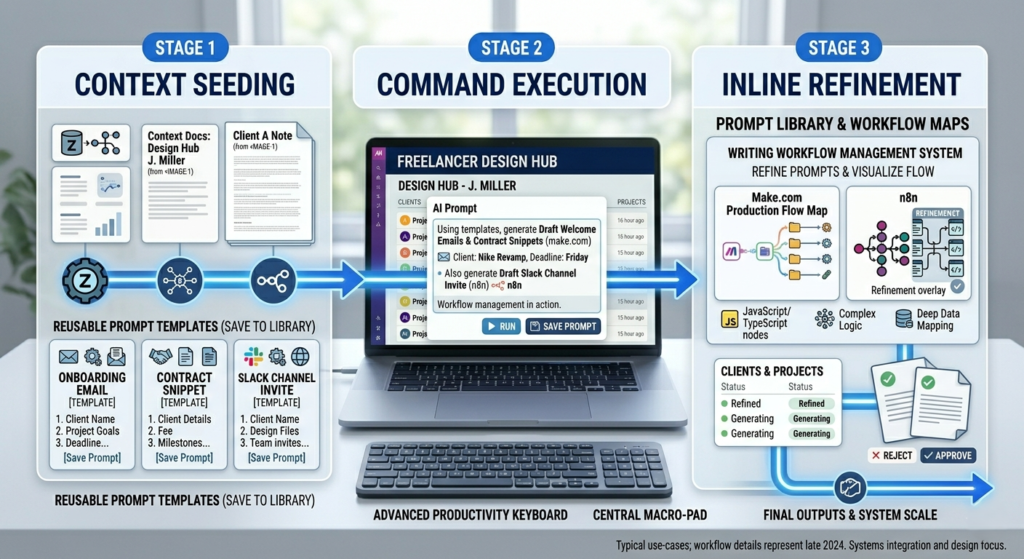
If you’re wondering how to use Notion AI for everyday writing tasks consistently, this framework provides a repeatable system you can apply every day. To get the most out of Notion AI, you need to treat it like a highly capable writing assistant rather than a simple text generator. This framework relies on three main functions:
┌─────────────────────────────────────────────────────────────────────────┐
│ NOTION AI WRITING FRAMEWORK │
├────────────────────┬────────────────────┬───────────────────────────────┤
│ 1. CONTEXT INPUT │ 2. COMMAND EXECUTE │ 3. INLINE EDITING │
│ Gather raw data, │ Use the Spacebar │ Highlight text to refine │
│ notes, or bullet │ to run custom │ tone, change length, or │
│ points on a page. │ prompt blocks. │ fix grammar errors. │
└────────────────────┴────────────────────┴───────────────────────────────┘
- Context Seeding: Dumping raw notes, messy bullet points, or unstructured ideas onto a blank page first.
- Command Execution: Using custom prompts to transform your raw data into structured outlines, professional emails, or formal project drafts. At this stage, how to use Notion AI becomes less about prompts and more about building repeatable writing systems.
- Inline Refinement: Highlighting specific sentences to instantly adjust your tone, fix grammar mistakes, or change the length of your copy.
The practical part of how to use Notion AI starts when you move from theory into real workflow execution.
Step-by-Step Workflow: Transforming Messy Notes into Polished Deliverables
The easiest way to understand how to use Notion AI for everyday writing tasks is to walk through a real example from start to finish. Let’s look at a practical, step-by-step workflow to turn a chaotic jumble of meeting notes into a polished client update document using Notion AI.
Step 1: Open Your Target Workspace Page
Navigate to your Notion database and open the page containing your rough notes or draft outline. If you are starting completely from scratch, create a new blank page (/page) and title it clearly.
Step 2: Activate the AI Prompt Bar
Click on an empty line on your page and press the Spacebar on your keyboard, or type /ai to open the command drop-down menu. You will see a list of automated options like Write with AI, Brainstorm ideas, or Summarize.
If you are new to AI-assisted writing, reviewing prompt-writing best practices from OpenAI can help you create more precise instructions and consistently higher-quality outputs. (External Link: https://platform.openai.com/docs/guides/prompt-engineering)
[IMAGE: User interface screenshot of a Notion page showing the prompt popup menu appearing after hitting the spacebar on a blank line]
Step 3: Run the Content Transformation Prompt
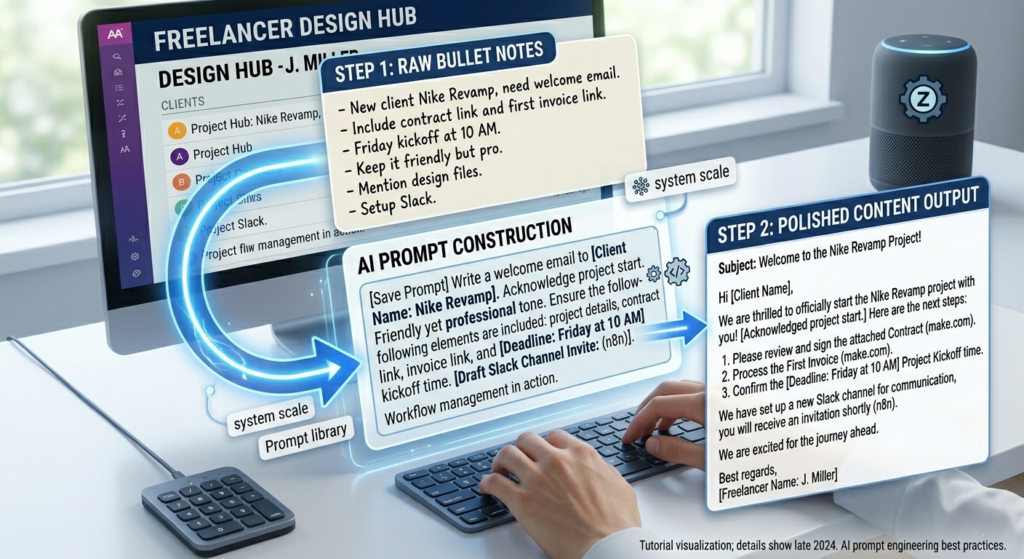
Instead of clicking a generic option, type a clear, descriptive instruction into the custom prompt box. For example:
“Act as a professional project manager. Review the messy bullet points on this page and turn them into a polished, executive-level project status update email. Organize it with clear headings for Achievements, Timeline Status, and Next Steps. Keep the tone confident and professional.”
Press Enter and watch the assistant build a structured, high-quality draft directly on your page in real time.
Step 4: Refine the Output Using Inline Editing
Never copy and paste an AI-generated draft without reviewing it first. Read through the text to check for accuracy. If a specific section sounds a bit too formal or wordy, highlight that paragraph with your cursor to open the inline editing toolbar. Click “Ask AI”, select “Change tone”, and choose “Approachable” or “Casual” to adjust the phrasing instantly.
Step 5: Save as a Reusable Template Block
If you find yourself writing the exact same type of document every week, turn your successful prompt into a permanent feature. Type /ai block on your page and select “Custom AI Block”. Paste your favorite prompt inside the block and save it. Now, you can click a single button every Friday to automatically generate your weekly updates.

How to Use Notion AI for Everyday Writing Tasks with High-Impact Prompts
How to Use Notion AI
To save time, save these ready-to-use prompts into your master notes folder so you can copy and paste them whenever you need them.
The “Blunt Email Neutralizer” Prompt
- When to use it: When you need to reply to a difficult client request without letting your personal frustration show.
- The Prompt: Review the rough email draft below. Rewrite it to sound polite, collaborative, and highly professional. Ensure all project boundaries are maintained clearly, but remove any defensive or frustrated language. Keep it under 150 words.
The “Executive Summary Extractor” Prompt
- When to use it: When you are given a long, dense report or meeting transcript and need to find the core takeaways fast.
- The Prompt: Read the document text above. Extract the top 3 high-level conclusions and list them as bold bullet points. Below that, create a separate checklist titled “Assigned Action Items” detailing who is responsible for what.
The “Content Wireframe Builder” Prompt
- When to use it: When you need to write a blog post, newsletter, or detailed guide and want a strong structural outline to start with.
- The Prompt: Create an SEO-optimized blog article outline for the topic [Insert Topic]. Include clear H2 and H3 section headings based on search intent. For each section, add a brief bullet point explaining what key information must be covered to provide maximum value to the reader.
Even after learning how to use Notion AI for everyday writing tasks, many users make a few avoidable mistakes that reduce the quality of their results.
3 Common Mistakes to Avoid with Notion AI
When setting up your writing workflows, avoid these common pitfalls to keep your systems running smoothly:
- Accepting the First Draft Blindly: AI tools can occasionally generate generic phrases or overlook subtle project details. Always spend 60 seconds reviewing and editing the text to add your personal voice and confirm your facts.
- Ignoring Page Context: Notion AI works best when it can read the text around it. If you open a completely empty page and ask it to write an update without providing any background details or notes, it will generate a generic template that won’t fit your specific needs.
- Relying Entirely on Default Buttons: The default options in the pop-up menu (like “Make Longer” or “Fix Grammar”) are helpful for basic edits, but they are often too broad. Taking a few extra seconds to type a specific instruction into the prompt bar will give you a much more accurate result.
Real-World Scenario: The Freelancer Content Engine
Let’s look at how an independent digital marketer uses this system to manage their weekly client communications.
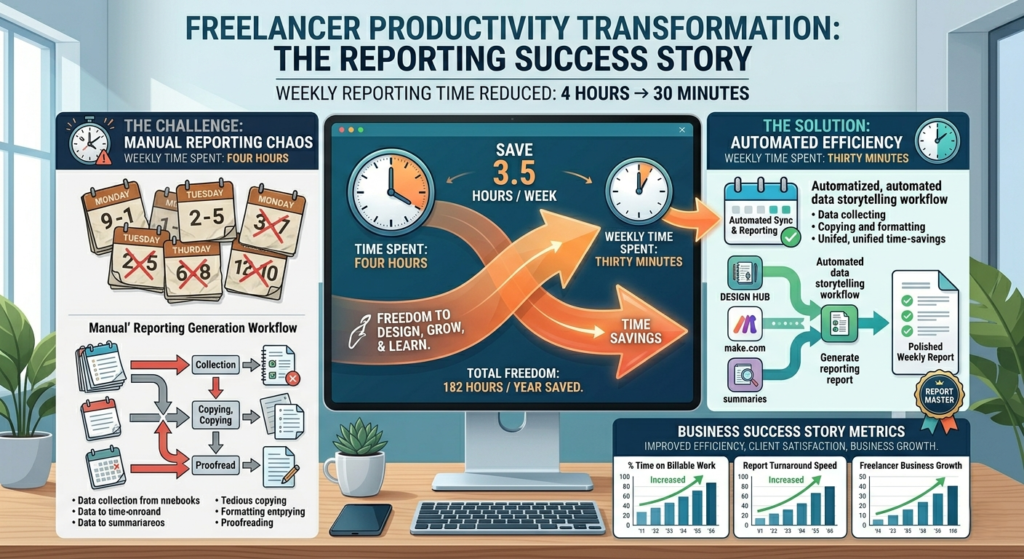
Sarah runs a boutique social media marketing freelance business. She used to spend her Sunday afternoons writing weekly performance reports and email updates for five different clients, which easily took up four hours of her weekend.
Many freelancers streamline reporting by using meeting transcription tools like Fireflies.ai setup for beginners before importing notes into Notion.
Many freelancers pair this workflow with automated meeting transcription tools to automate post-call tracking before processing information inside Notion. (Internal Link → Fireflies.ai Setup for Complete Beginners (2026 Step-by-Step))
Sarah’s New Automated System:
- During the week, Sarah uses an automated meeting assistant to capture live client calls. The raw notes are automatically sent directly into her Notion database via AI workflow automation.
- On Sunday, Sarah opens her master client portal page, hits the spacebar, and activates her custom AI block template.
- The system reads her accumulated project notes and automatically structures a clean report detailing key marketing metrics, content approvals, and next week’s schedule.
- Sarah reviews the text, uses inline editing to adjust the tone for each client, and sends the updates out.
The Result: Sarah’s weekly reporting time dropped from four hours to under 30 minutes, allowing her to protect her weekend and focus on growing her business.
System Optimization Tips for Maximum Efficiency
- Combine with Keyboard Shortcuts: Stop reaching for your mouse. Use Cmd/Ctrl + J to open the AI prompt window instantly from anywhere on a active Notion page.
- Build an Internal Prompt Library: Create a centralized page in your workspace titled Company Prompt Directory. Save your most successful prompt structures here so your entire team can access and use them.
- If you’re creating a connected workspace that includes automation, meeting notes, and content generation, review our AI productivity and workflow systems guide to build a more complete operating system for daily work. (Internal Link → AI Productivity & Workflow Systems for Everyday Users: The Complete 2026 Guide)
- Connect to External Triggers: Use Zapier to automatically feed external information, like client form submissions or email support tickets, into Notion database pages. This ensures your writing assistant has all the background data it needs before you even open the page. For additional workflow examples, see our guide on Zapier automations for non-technical users.
Learn more about automation workflows from Zapier’s automation learning center. (External Link: https://zapier.com/blog)
Suggested Internal Link Opportunities
To build strong topical authority across your site, consider integrating these natural internal link transitions within your content package:
- Opportunity 1 (Anchor Text: “comprehensive AI productivity system framework”)
- Context Clause: “If you want to move beyond basic note-taking and build a comprehensive AI productivity system framework to manage your entire business, you need a clear step-by-step strategy.”
- Opportunity 2 (Anchor Text: “AI productivity and workflow systems guide”)
- Context Clause: “For a complete, high-level blueprint on how to sync your writing assistants with meeting note-takers and database managers, explore our complete AI productivity and workflow systems guide.”
- Opportunity 3 (Anchor Text: “automate your post-call tracking”)
- Context Clause: “To learn how to capture raw conversational data from your client syncs before processing it in Notion, check out our tutorial to automate your post-call tracking using specialized tools.”
By this point, you should have a clear understanding of how to use Notion AI for everyday writing tasks without relying on complicated automation setups or multiple applications.
Building consistency with AI workflows becomes easier when following a structured plan like the 30-day AI productivity challenge for beginners.
Conclusion: Reclaim Your Daily Schedule
Mastering everyday writing tasks isn’t about replacing your personal creativity; it’s about eliminating the administrative friction that slows you down. By integrating an intentional writing system directly into your central workspace, you clear out the mental block of the blank page and speed up your daily output.
Whether you’re drafting client emails, preparing project updates, or outlining content, learning how to use Notion AI for everyday writing tasks can remove repetitive work while keeping you in control of the final message.
Stop losing your mornings to email formatting. Open a page, use the spacebar to open the prompt bar, and let your system build your first drafts for you.
For a complete system-level understanding, explore the AI productivity and workflow systems complete guide.
Internal Package Navigation Directory
- To connect your central workspace to thousands of external applications without code, read: 10 Zapier Automations for Non-Technical Users (Step-by-Step 2026)
- To compare system-wide writing tools against your internal notes application, read: GrammarlyGO vs Notion AI: Which Should You Choose First? (2026 Comparison)
- To automate your meeting summaries and action items, read: Fireflies.ai Setup for Complete Beginners (2026 Step-by-Step)
- To clean up your browser tabs and manage your reference files, read: Otio for Research: Step-by-Step Guide for Students & Professionals (2026)
- To build consistent daily habits over the next four weeks, read: 30-Day AI Productivity Challenge for Beginners (Complete Guide)
- To read our core strategic blueprint, explore: AI Productivity & Workflow Systems for Everyday Users: The Complete 2026 Guide