
Why Manual Meeting Notes Are Becoming Obsolete
If you’ve ever left a meeting feeling productive only to realize later that nobody remembers the decisions that were made, you’re not alone. Modern professionals spend a huge portion of their week inside meetings, yet many still rely on handwritten notes, scattered documents, or hurried typing sessions to capture important information. The result is predictable. Critical action items disappear. Deadlines become fuzzy. Responsibilities get misunderstood. Team members spend valuable time asking questions that were already answered during the meeting itself.
How to Set Up Fireflies AI is becoming a common question among professionals who are tired of losing important meeting details. If you’ve ever left a meeting feeling productive only to realize later that nobody remembers the decisions that were made, you’re not alone. Many professionals spend hours every week in meetings, yet still rely on handwritten notes, scattered documents, or rushed typing to capture important information. The result is familiar: action items get missed, deadlines become unclear, and team members end up asking questions that were already answered during the meeting.
The real problem isn’t note-taking; it’s divided attention. Every minute spent typing notes is a minute not spent actively listening, analyzing, and contributing to the conversation. Imagine attending a football match while constantly staring at your phone to record every play. You would miss the game while trying to document it. Meetings work the same way. The more effort you devote to transcription, the less mental energy remains for strategic thinking.
AI meeting assistants are changing this dynamic dramatically. Instead of acting as human stenographers, professionals can focus on conversations while software handles transcription and documentation. Fireflies.ai has emerged as one of the most popular tools in this category because it combines meeting recording, AI-generated summaries, searchable transcripts, and workflow integrations into a single platform. According to Fireflies’ current platform information, the service supports major conferencing systems including Zoom, Google Meet, Microsoft Teams, and Webex while automatically generating transcripts and AI summaries.
If you’re building a complete AI-powered workflow, you may also enjoy our guide on Fireflies AI vs Otter AI vs Granola and learn which meeting assistant best fits your needs.
What Is Fireflies.ai?
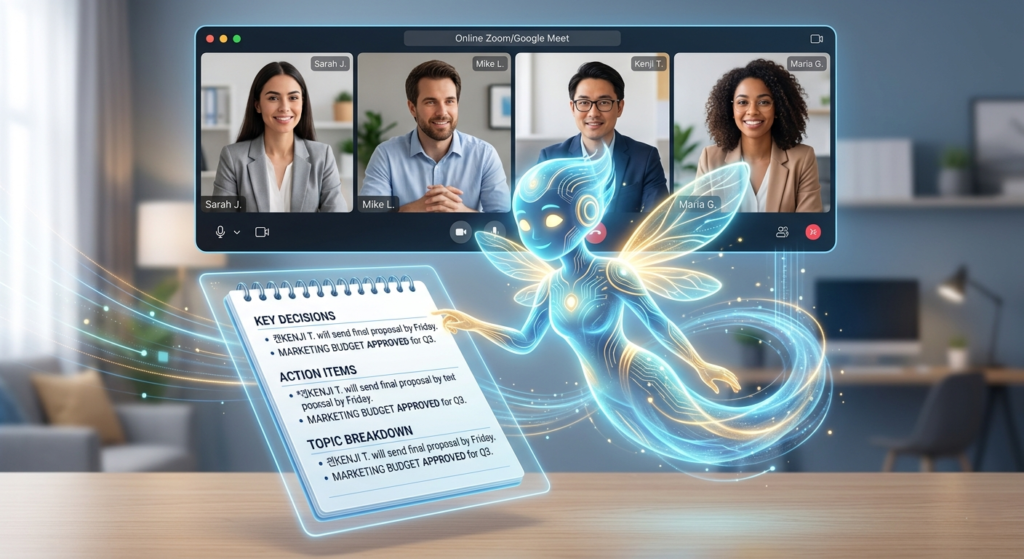
Fireflies.ai is an AI-powered meeting assistant that joins online meetings, records conversations, transcribes discussions, and automatically generates organized meeting notes. Think of it as a highly attentive virtual assistant whose only job is listening carefully and documenting everything accurately.
How Fireflies Works
The platform connects to your calendar and conferencing systems. Once configured, it can automatically join meetings or participate only when specifically invited. During the meeting, it listens to conversations and converts speech into searchable text. After the meeting concludes, Fireflies processes the transcript and creates AI-powered summaries, action items, topic breakdowns, and key takeaways. Current Fireflies documentation highlights features such as unlimited transcription, meeting search, AI summaries, speaker identification, and real-time note generation.
For official feature details, visit Fireflies AI: https://fireflies.ai
Supported Meeting Platforms
One reason Fireflies has become popular is its broad compatibility. Current support documentation confirms integration with:
- Google Meet
- Zoom
- Microsoft Teams
- Webex
- Dialpad
- GoToMeeting
- Lifesize and
- Additional conferencing systems
This flexibility allows organizations to maintain one central repository for meeting knowledge regardless of which platform individual teams prefer.
Benefits of Using an AI Meeting Assistant
The biggest advantage of Fireflies isn’t simply saving notes. It is preserving organizational memory. Meetings often contain valuable insights, customer feedback, strategic decisions, and project updates that vanish shortly after the call ends. Fireflies creates a searchable archive that allows teams to revisit discussions months later.
Another major benefit is accountability. When action items are automatically extracted and assigned, ambiguity disappears. Instead of asking “Who was supposed to do that?” teams can reference documented outcomes. Fireflies also includes analytics capabilities, topic tracking, sentiment analysis, and integrations with dozens of business applications. Current platform information notes support for more than 100 integrations, including Slack, Salesforce, HubSpot, Dropbox, and project management tools.
For remote teams, consultants, sales professionals, recruiters, educators, and agency owners, the productivity gains can be substantial. Every hour previously spent cleaning up notes can be redirected toward execution.
For professionals exploring AI productivity systems, this works particularly well alongside tools discussed in our 10 AI Productivity Wins in Your First 30 Days (2026) Guide.
How to Set Up Fireflies AI in 7 Easy Steps
Step 1: Creating Your Fireflies.ai Account
Getting started is surprisingly simple. The first step in learning how to set up Fireflies AI is creating an account by visiting the Fireflies website using:
- Google Workspace
- Microsoft Account
Choosing the account linked to your primary business calendar is important because Fireflies uses calendar synchronization to identify upcoming meetings.
After registration, the onboarding wizard walks you through essential setup options. New users are often tempted to rush through these screens, but spending a few extra minutes here prevents confusion later.
- Verify calendar permissions carefully
- Confirm time zone settings
- Review default recording preferences
- Enable calendar access
These details determine how smoothly the system operates once live meetings begin.
Current pricing information shows that Fireflies offers a free plan with unlimited transcription capabilities, limited AI summaries, and 800 minutes of storage per seat. Paid plans unlock advanced analytics, unlimited summaries, expanded storage, workflow automation, and additional AI features.
Step 2: Connecting Your Calendar
Calendar integration is arguably the most important step in the setup process. Without it, Fireflies loses much of its automation power. Once connected, Fireflies can:
- Detect upcoming meetings automatically
- Determine when to join based on your preferences
- Generate notes without manual intervention
For Google users, connecting Google Calendar typically takes less than a minute. Microsoft users follow a similar process through Outlook integration. After authorization, Fireflies begins scanning upcoming events containing meeting links.
Think of your calendar as the control tower directing aircraft traffic. Fireflies relies on that control tower to know where and when it should appear. Without calendar synchronization, every meeting would require manual coordination.
Before moving on, create a test calendar event and verify that Fireflies recognizes it. This simple check can save significant troubleshooting later.
Step 3: Configure Auto-Join Settings
A critical part of how to set up Fireflies AI is deciding when the assistant should join meetings.
Join Every Meeting
This setting allows Fireflies to automatically join all qualifying meetings found on your calendar.
Best for:
- Busy founders
- Executives
- Agency owners
- Heavy meeting schedules
Invite-Only Mode
For most beginners, invite-only mode is the safest choice. Instead of joining every meeting automatically, Fireflies participates only when its assistant email address is explicitly invited.
Benefits include:
- Better privacy control
- Reduced accidental recordings
- Easier learning curve
Internal and External Meeting Modes
Organizations can also restrict participation based on attendee composition. Some teams choose internal-only recording while others focus primarily on customer-facing conversations. This flexibility helps organizations align recording practices with compliance requirements and privacy expectations.
Step 4: Customizing AI Summaries
The transcript is only half the value proposition. The real magic appears when Fireflies transforms lengthy conversations into structured insights.
Inside the AI Apps or Summary settings section, users can configure how meeting summaries are organized. Popular categories include:
- Key Decisions
- Action Items
- Risks and Roadblocks
- Next Steps
- Questions Raised
- Customer Feedback
This customization ensures summaries align with your workflow. A sales team may prioritize objections and buying signals. A project management team may emphasize deadlines and responsibilities. A consulting firm may focus on client requirements and deliverables.
The more closely your summary structure matches your business processes, the more valuable each meeting record becomes.
Step 5: Running Your First Test Meeting
Before deploying Fireflies in a high-stakes client call, conduct a simple test.
Create a private:
- Zoom meeting
- Google Meet session.
Invite Fireflies and discuss:
- Action items
- Budgets
- Risks
- Next steps
After the meeting ends, wait for processing to complete. Review:
- Transcript accuracy
- Speaker Identification
- Evaluate AI summaries
- Test the search functionality
This exercise accomplishes two things. First, it familiarizes you with the interface. Second, it helps you understand how Fireflies interprets real-world conversations before important meetings occur.
Step 6: Explore the Fireflies Dashboard
Understanding the dashboard is an essential step in how to set up Fireflies AI effectively. The dashboard serves as your central command center.
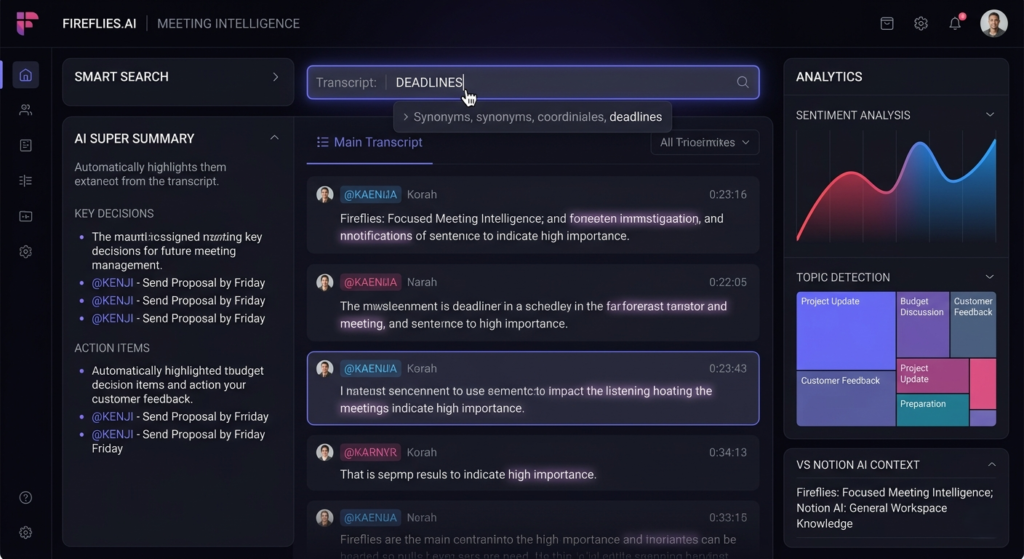
Smart Search and Analytics
This section enables users to locate specific discussions instantly. Instead of replaying entire recordings, users can search keywords and jump directly to relevant moments. Fireflies also provides analytics features such as:
- Sentiment analysis
- Topic tracking
- Speaker insights
Interactive Transcript
The transcript provides:
- Speaker attribution
- Chronological conversations
- Click-to-play playback
AI Super Summary
This is where most users spend their time.
This section highlights:
- Major discussion themes
- Action items
- Key decisions
- Executive summaries
According to current product documentation, AI summaries are a core feature across Fireflies plans, with expanded capabilities available in paid tiers.
Step 7: Connect Integrations and Automations
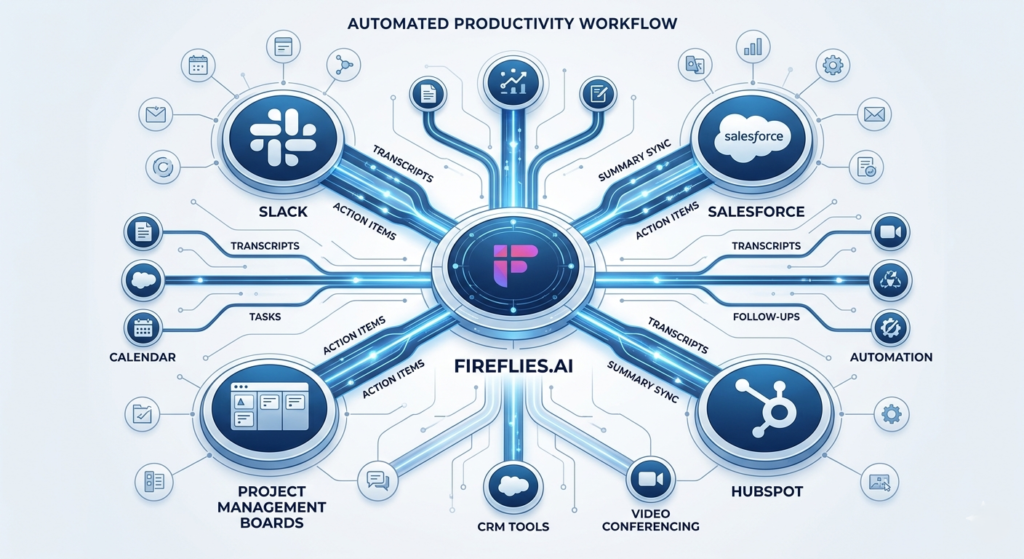
The final step in how to set up Fireflies AI is connecting your existing productivity stack.
Popular integrations include:
- Slack
- HubSpot
- Salesforce
- Dropbox
- Zoom
- Google Meet
- Microsoft Teams
These integrations allow meeting insights to flow automatically into the tools your team already uses.
If you’re interested in building broader automation systems, check out our guide on 10 Best Zapier Automations for Small Businesses.
Fireflies.ai Pricing and Plans
Current Fireflies pricing includes four primary tiers:
| Plan | Annual Price | Best For |
| Free | $0 | Individuals testing AI note-taking |
| Pro | $10/user/month (annual billing) | Freelancers and professionals |
| Business | $19/user/month (annual billing) | Growing teams |
| Enterprise | $39/user/month | Large organizations |
The Free plan includes:
- Unlimited transcription
- Limited AI summaries
- 800 minutes storage
Paid plans unlock advanced features such as:
- Unlimited summaries
- Expanded storage
- Analytics, integrations, and enterprise controls.
Integrations and Workflow Automation
Fireflies becomes significantly more powerful when connected to other business applications. Meeting notes can flow directly into Slack channels, CRM systems, project management platforms, and knowledge bases.
Current integration documentation highlights connections with Slack, Salesforce, HubSpot, Google Meet, Microsoft Teams, Zoom, Dropbox, and many additional platforms.
Imagine finishing a sales call and having notes automatically attached to a CRM record. Or completing a project meeting and instantly creating task assignments in your project management software. This automation reduces administrative work while improving information consistency.
Privacy, Security, and Meeting Etiquette
Whenever using AI note-taking tools, transparency matters.
Always inform participants when meetings are:
- Recorded
- Transcribed
- Summarized
Fireflies offers enterprise-grade security measures including:
- SOC 2 Type II compliance
- Encryption standards
- GDPR support
- HIPAA-focused options
Technology should support trust rather than undermine it.
Good etiquette is simple. At the beginning of a meeting, mention that an AI assistant is present to help capture notes. Offer participants an opportunity to ask questions or request pauses during sensitive discussions.
Technology should support collaboration, not create discomfort.
Common Beginner Mistakes
Many first-time users encounter avoidable problems. The most common mistake is enabling automatic recording for every meeting before understanding how the system works. Another frequent issue involves failing to review summaries and assuming they are perfect. AI is impressive, but verification remains important.
Users also sometimes neglect folder organization, creating large archives that become difficult to navigate. Others skip integration opportunities and miss out on automation benefits that dramatically increase productivity.
Treat Fireflies as a helpful assistant rather than an infallible replacement for human judgment. Review outputs regularly and refine settings as your needs evolve.
Best Practices for Better Summaries
Want higher-quality summaries? Start with higher-quality meetings.
Encourage participants to speak clearly. Avoid excessive interruptions. Define agendas beforehand. Identify action items explicitly. Use names when assigning responsibilities.
Think of AI transcription like photography. Better lighting produces better pictures. Better meeting habits produce better summaries.
The clearer your conversations become, the more accurate and useful Fireflies’ outputs will be.
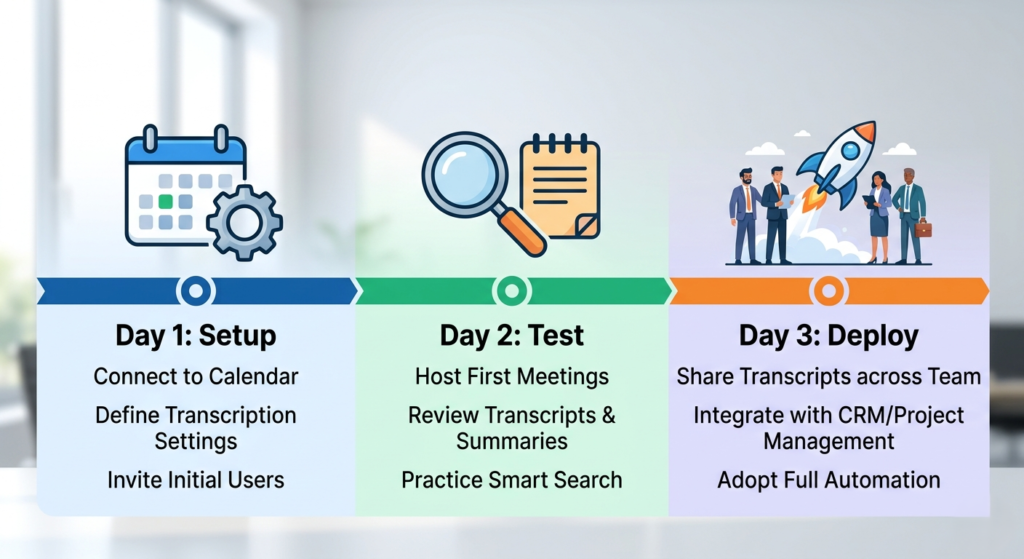
Your 3-Day Fireflies Implementation Plan
Day 1
- Create your account
- Connect your calendar
- Enable Invite-Only mode
Day 2
- Run a test meeting
- Review transcripts
- Explore dashboard features
Day 3
- Use Fireflies during a real team meeting
- Share generated summaries
- Gather participant feedback
By the end of the third day, you’ll have a functioning AI note-taking system and a much clearer understanding of how automation can improve meeting productivity.
Conclusion
Learning how to set up Fireflies AI is surprisingly simple, yet the productivity benefits can be enormous. Fireflies.ai removes one of the most frustrating aspects of modern work: trying to participate in conversations while simultaneously documenting them. By automating transcription, summarization, action item tracking, and knowledge capture, it allows professionals to focus on discussion rather than administration.
The platform’s support for major conferencing systems, extensive integrations, AI-powered summaries, and flexible recording options make it an excellent entry point for organizations exploring AI productivity tools. Current platform information confirms support for major meeting platforms, unlimited transcription capabilities, and more than 100 business integrations.
Start small. Run a test meeting. Review the results. Once you experience the freedom of fully automated note-taking, going back to manual documentation feels like returning to paper maps after discovering GPS.
Frequently Asked Questions
1. Is Fireflies.ai free to use?
Yes. Fireflies offers a free plan that includes unlimited transcription, limited AI summaries, and 800 minutes of storage.
2. Does Fireflies work with Microsoft Teams?
Yes. Fireflies currently supports Microsoft Teams, Zoom, Google Meet, Webex, and several other conferencing platforms.
3. Can Fireflies automatically join meetings?
Yes. Users can configure Fireflies to auto-join meetings based on calendar events or require manual invitations.
4. Is Fireflies secure for business use?
Fireflies provides enterprise-focused security features including SOC 2 Type II compliance, encryption, GDPR support, and enterprise controls.
5. What is the best setting for beginners?
Invite-Only mode is typically the safest and easiest starting point because it gives complete control over which meetings are recorded and summarized.